
To set up Microsoft 365 for business with a professional @yourbusiness.com email, buy a business plan, add and verify your domain in the Microsoft 365 Admin Center, create your user accounts, and point your domain’s MX and DNS records to Microsoft. Only one primary email provider can be used per domain because DNS MX records route all incoming mail for a domain to a single destination—having multiple providers causes DNS conflicts, bouncing messages, and lost emails.
Learn how to setup Microsoft sharePoint

Ready to elevate your business technology?
Set up a free technical consultation with our experts today!
📩 Email us directly at: info@ultimatecoder.in
🌐 Learn more: www.ultimatecoder.in
Complete Microsoft 365 professional Email Setup Guide: Setting Up Microsoft 365 Business Email
Using a custom address like info@yourbusiness.com builds instant credibility and trust with your clients. Here is a clear breakdown of the setup steps and the technical reason why your domain can only route emails through one provider at a time.
Step-by-Step 15 minutes Setup Process
1.1. Purchase a Microsoft 365 Business Plan:5 mins.
Sign up for a business plan (e.g., Business Basic or Business Standard) at Microsoft.com. This creates your initial admin account ending in @yourcompany.onmicrosoft.com.
2.2. Add Your Domain to Microsoft:5 mins.
Log into the Microsoft 365 Admin Center. Go to Settings > Domains > Add domain and enter your registered custom domain name (e.g., yourbusiness.com).
3.3. Verify Domain Ownership:10 mins.
Microsoft will generate a unique TXT record. Log into your domain registrar (GoDaddy, Namecheap, Cloudflare, etc.), navigate to DNS Settings, paste the TXT record, and then go back to Microsoft 365 Admin Center click Verify in the Microsoft Admin Center.
4.4. Create User Mailboxes:10 mins.
In the Admin Center, navigate to Users > Active users > Add a user. Enter employee details and assign them custom email addresses (e.g., john@yourbusiness.com) using your newly verified domain.
5.5. Update MX and DNS Records:15 mins.
To start receiving messages in Microsoft 365, update your domain’s DNS records:
Why Only ONE Email Provider Can Be Used Per Domain
When someone sends an email to sales@yourbusiness.com, the sender’s mail server queries the global Domain Name System (DNS) to find out where to deliver the message.
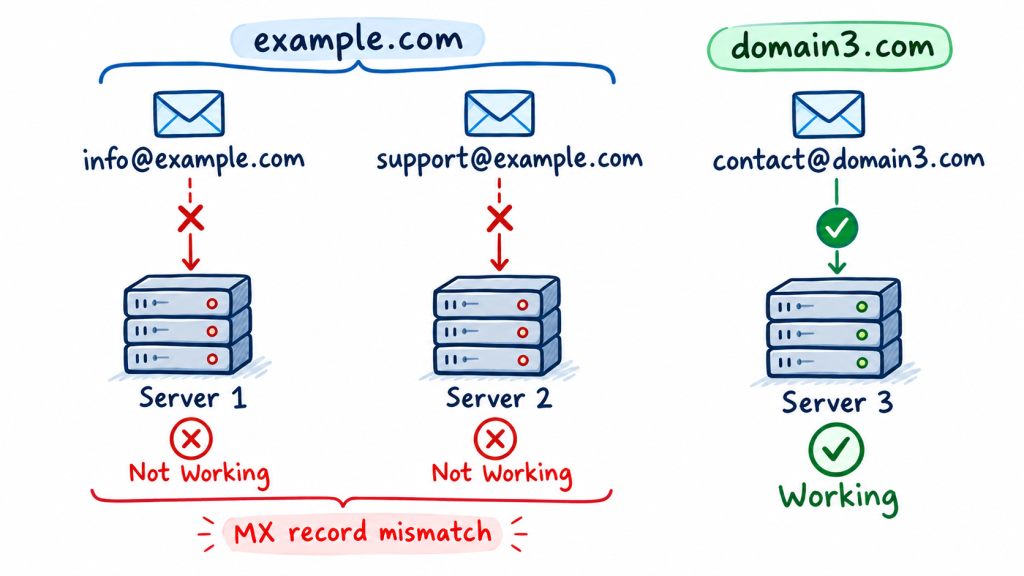
Only one primary email provider can be used per domain because Domain Name System (DNS) MX records apply to the entire domain, not individual addresses, routing all incoming mail for that domain to a single destination server. Trying to split mailboxes across multiple providers causes incoming messages to be randomly misrouted, bounced, flagged as spam, or blocked entirely.
The DNS uses a specific rule called an MX (Mail Exchange) record to declare the destination mail server:
Sender’s Email Server ──> Queries DNS MX Record ──> Routes directly to Microsoft 365
Ready to elevate your business technology?
Set up a free technical consultation with our experts today!
📩 Email us directly at: info@ultimatecoder.in
🌐 Learn more: www.ultimatecoder.in
Detailed Breakdown of Why Split Providers Fail
1. MX Records are Domain-Wide, Not User-Specific
When an external server looks up yourbusiness.com, it receives a list of Mail Exchange (MX) servers. Unlike a phone directory where extension 101 goes to Office A and extension 102 goes to Office B, an MX record directs all traffic for the domain name to a single mail server environment. You cannot tell the internet: “Send sales@ to Microsoft and support@ to Google.”
2. Random Routing and Lost Emails
If you configure multiple MX records for different providers with equal priority, sending servers choose one at random (round-robin). If an email for a user hosted on Google hits Microsoft’s server instead, Microsoft will reject it because that user account does not exist in its local directory, resulting in a fatal bounce message for the sender.
3. Security and Spam Authentication Failures (SPF/DKIM)
Email servers use SPF (Sender Policy Framework) records to declare which server networks are authorized to send mail on behalf of your domain.
- With a single provider, you have one clean rule pointing to that provider.
- With multiple providers, your SPF record must juggle multiple server clusters. If an email is routed or sent through an overlapping path that isn’t perfectly synchronized, receiving mail servers will flag the message as spoofing or phishing, sending your emails straight to the spam folder.
4. Broken Internal Communication
If your CEO is on Microsoft 365 and your billing team is on Google Workspace, Microsoft’s server will block internal messages sent from the CEO to billing. Because Microsoft’s local database shows no record of a billing@ account on its own servers, it assumes the address is invalid and refuses to deliver it internally.
The Postal Analogy
Think of your domain name (yourbusiness.com) as a single physical building. The MX record is the single delivery entrance assigned to that building. If you try to tell the postal service that half your mail goes through the front door (Microsoft) and half goes through the back door (Google) without a central routing system inside, delivery drivers will drop mail randomly, packages will end up in empty rooms, and crucial letters will get lost.
Why Splitting Providers Breaks Email Delivery
Scenario | Single Email Provider | Multiple Email Providers |
MX Destination | Cleanly points to Microsoft servers. | Pointing to 2+ systems creates DNS routing conflicts. |
Inbound Delivery | 100% of messages arrive in Outlook. | Sending servers pick one MX entry at random. Half your emails bounce or vanish. |
Sender Authentication | SPF & DKIM keys validate outbound mail. | Receiving servers mark sent mail as Spam/Phishing due to mismatched credentials. |
Internal Messaging | All team members communicate seamlessly. | Local servers reject internal emails meant for users hosted on the other provider. |
Analogy: Think of your domain name as a physical street address. The MX record tells the post office which single mail room handles all mail for that address. If you register two different mail rooms for the same door, delivery drivers won’t know where to leave packages, resulting in lost or rejected mail.
Let Ultimate Coder Handle Your Business Setup & Infrastructure
Managing DNS records, email migrations, and cloud configurations can quickly become overwhelming—and a single misconfigured record can take your business email offline or land your messages in spam.
At Ultimate Coder, we specialize in seamless enterprise setup, domain migrations, and web infrastructure management. Whether you need help setting up Microsoft 365, migrating existing mailboxes without losing data, or configuring custom web and cloud software, our engineering team ensures a smooth, zero-downtime transition.
Ready to elevate your business technology?
Set up a free technical consultation with our experts today!
📩 Email us directly at:info@ultimatecoder.in
🌐 Learn more:www.ultimatecoder.in

