
In this guide, we’ll address the core questions business owners ask “How to Setup Microsoft SharePoint”, followed by a step-by-step walk through on setting up your Microsoft 365 tenant, connecting your domain, and launching your first SharePoint site.
When choosing Microsoft 365 subscription tiers, organizations must strategically balance user application needs, security requirements, and long-term growth. Rather than defaulting to a single company-wide plan, IT leaders should evaluate specific user roles matching frontline staff with lightweight web-based tiers, knowledge workers with desktop suites, and security-critical or executive teams with advanced protection packages.
 Now that your domain is linked and user accounts are created:
 Note: This basic setup gives your organization a centralized, collaborative cloud portal. We will cover advanced site customization, permission security rules, and metadata structures in a future article!
Key Takeaways
- Always select a business plan that includes SharePoint Online.
- Connect a custom domain to activate branded email addresses (name@yourbusiness.com). Read how to setup professional email on microsoft 365 business
- Organize SharePoint into dedicated Team Sites by department or project for cleaner governance.
- Partner with Ultimate Coder for seamless platform implementation, cloud workflow automation, and staff training.
Executive FAQ: What Business Owners Need to Know
What is Microsoft 365?
Microsoft 365 is a complete cloud-based productivity ecosystem. It combines desktop Office applications (Word, Excel, PowerPoint) with enterprise cloud services like Exchange Online (business email), Microsoft Teams (chat and video meetings), and SharePoint Online (intranet and document management). Instead of relying on local servers or fragmented software, Microsoft 365 gives your entire team secure access to company tools under a single subscription.- Centralized Knowledge Hub: Replaces scattered local drives and email attachments with a single, secure cloud environment where your entire team can access company files, news, and policies.
- Real-Time Synchronous Collaboration: Multiple employees can view and edit the exact same document simultaneously without creating conflicting file versions or overwriting work.
- Granular Access Control: Allows administrators to restrict file visibility by department, role, or project level to safeguard sensitive company data.
- Automatic Version History: Every edit made to a document is tracked as a historical revision, allowing you to restore previous versions instantly if needed.
- Seamless Integration: Integrates natively with Microsoft Teams, OneDrive, Outlook, and your standard Office desktop apps.
Basic setup such as purchasing licenses and creating user accounts—is simple and user-friendly. However, configuring DNS records correctly, migrating existing email data, setting up complex SharePoint permissions, and establishing governance policies require technical planning to ensure your environment remains secure and organized.
SharePoint acts as your company’s digital headquarters and primary document management repository. Unlike personal storage tools like OneDrive (which is designed for individual work-in-progress files), SharePoint hosts shared departmental libraries, company policies, internal communications, and project hubs where team members collaborate synchronously.
- OneDrive for Business is your personal cloud storage. It is meant for individual files, work-in-progress drafts, or documents you aren’t ready to share yet.
- SharePoint is a collaboration and content management platform. It is built for teams, departments, and whole organizations to store, manage, and co-own files.
| Feature | OneDrive for Business | SharePoint |
| Primary Purpose | Personal file storage, private notes, and individual work-in-progress drafts. | Team collaboration, company-wide document management, and intranet hosting. |
| Ownership & Access | Owned by a single individual. Files are completely private by default until explicitly shared. | Owned by a team, department, or organization. Access is managed through pre-defined group permissions. |
| Best Used For | Daily working files, personal drafts, or items you only want one person to control. | Shared project documents, company policies, team templates, and official records. |
| Data Lifecycle / Employee Turnover | Tied directly to an individual’s Microsoft 365 account; if the account is deleted, files can be lost if not properly transferred. | Independent of individual users. Files remain safe and accessible to the team even if an employee leaves the company. |
For daily tasks like opening, uploading, and editing documents, SharePoint operates much like Word, Excel, Presentation, etc. cloud file portals or local drives. However, without clear onboarding, and employee training; employees often fall back on old habits like emailing file attachments back and forth. Proper staff training ensures your team fully utilizes real-time co-authoring, cloud sharing links, and automated workflows.
Yes! As an administrator or authorized user, you can build custom SharePoint Team Sites (for specific departments) or Communication Sites (for company-wide announcements) using drag-and-drop elements without writing a single line of code. I will cover this topic in more detail in another separate article.
Step 1: Visit Microsoft 365 & Choose the Right Plan
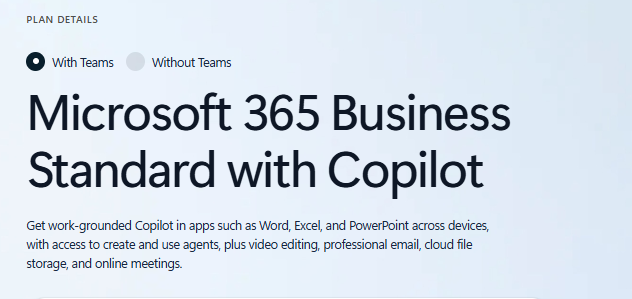
To get started, head over to the official Microsoft 365 for Business page. Microsoft offers several business subscription tiers (such as Business Basic, Business Standard, and Business Premium). When choosing a plan, ensure it explicitly includes SharePoint Online.- Business Basic or Business Standard are great starting points that include SharePoint, Teams, OneDrive, and custom email hosting.
- Sign in with an existing admin account or create a new administrator profile during checkout.
- Complete the payment process to activate your business tenant.
 Key Considerations When Selecting Subscription Tiers
When choosing Microsoft 365 subscription tiers, organizations must strategically balance user application needs, security requirements, and long-term growth. Rather than defaulting to a single company-wide plan, IT leaders should evaluate specific user roles matching frontline staff with lightweight web-based tiers, knowledge workers with desktop suites, and security-critical or executive teams with advanced protection packages.
Step 2: Connect Your Custom Business Domain
Once your subscription is active, you need to establish your company’s custom digital identity.
Does Microsoft 365 Give You a Free Domain?
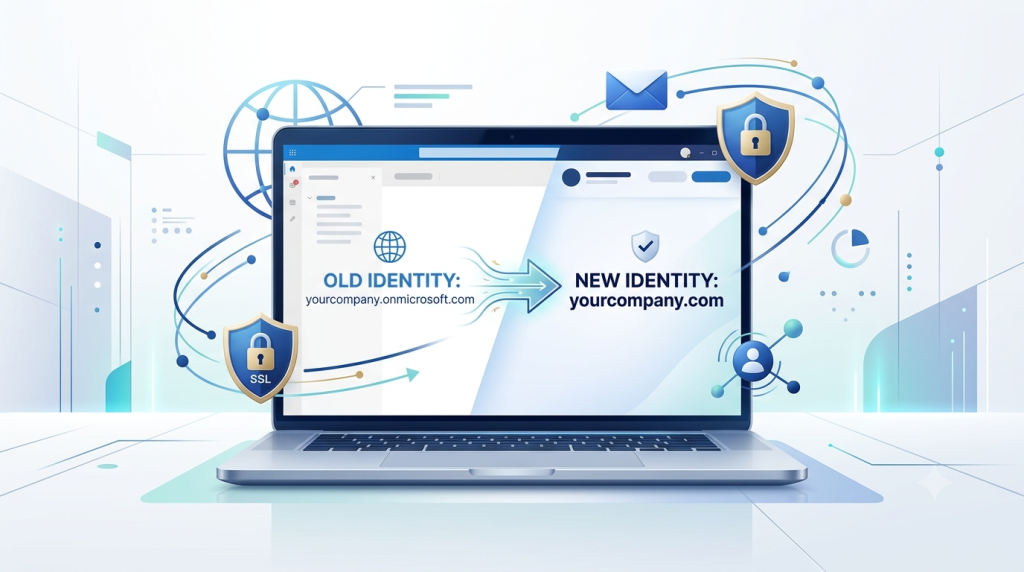
No. Microsoft provides a default temporary domain format such as yourcompany.onmicrosoft.com. To look professional, you must purchase a custom domain (e.g., yourcompany.com) from a domain registrar and connect it to Microsoft 365.Why Connect a Custom Domain?
Professional Email: Enables email addresses like name@yourbusinessname.com via Exchange Online. Brand Trust: Clients and partners instantly recognize and trust communications coming from your official domain.How to Connect Your Domain:
- Log in to the Microsoft 365 Admin Center (admin.microsoft.com).
- In the left navigation menu, go to Settings > Domains.
- Click Add domain and enter your custom domain name.
- Verify domain ownership by adding a TXT or MX record to your domain registrar’s DNS control panel.
- Follow the setup wizard to complete the DNS mapping (MX, CNAME, and SPF records for email and cloud services).
Now that your domain is linked and user accounts are created:
- Sign in to portal.office.com using your administrative credentials.
- Click the App Launcher (the 9-dot grid icon in the top-left corner).
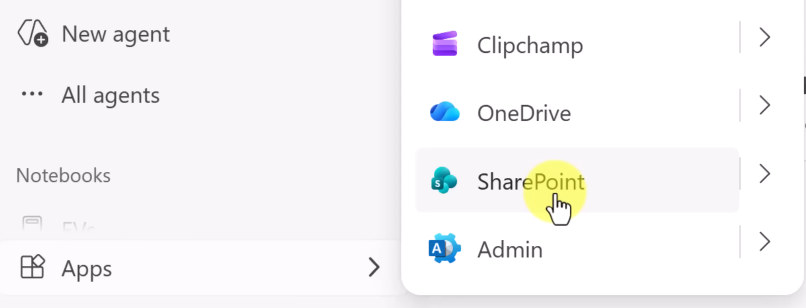
- Select SharePoint from the application dashboard.
Streamline Your Business Workflows with Ultimate Coder
Setting up cloud platforms, managing migrations, and configuring workflow automations can be time-consuming. Let our technical experts handle the heavy lifting while you focus on scaling your core operations. 👉 Book Your Business Process Consultation with Ultimate Coder Email info@ultimatecoder.in
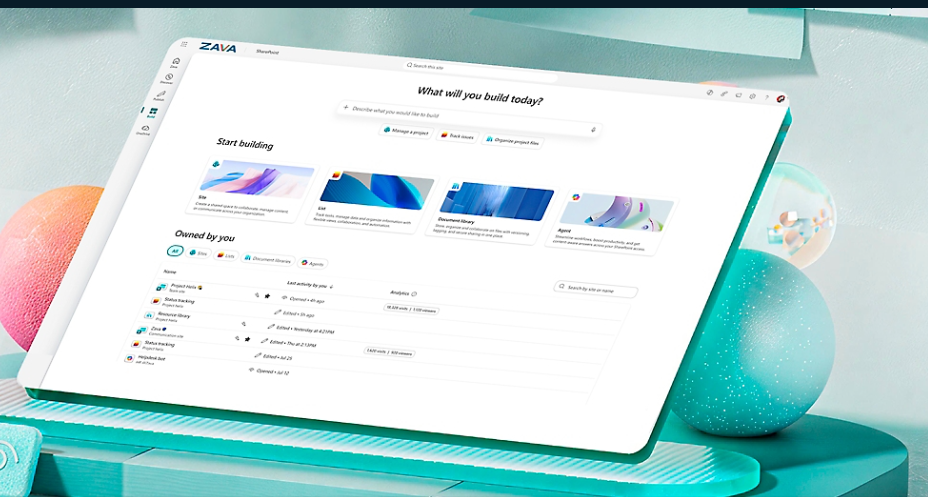
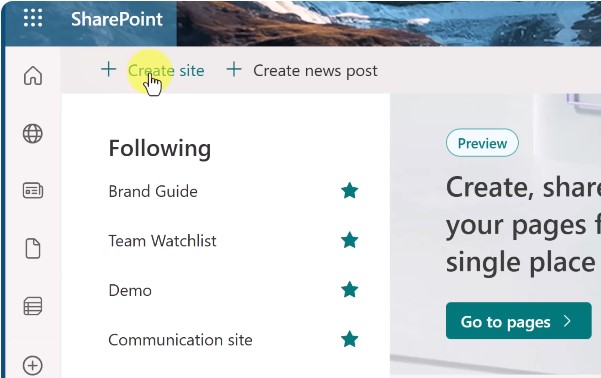
- From the main SharePoint home page, click + Create site.
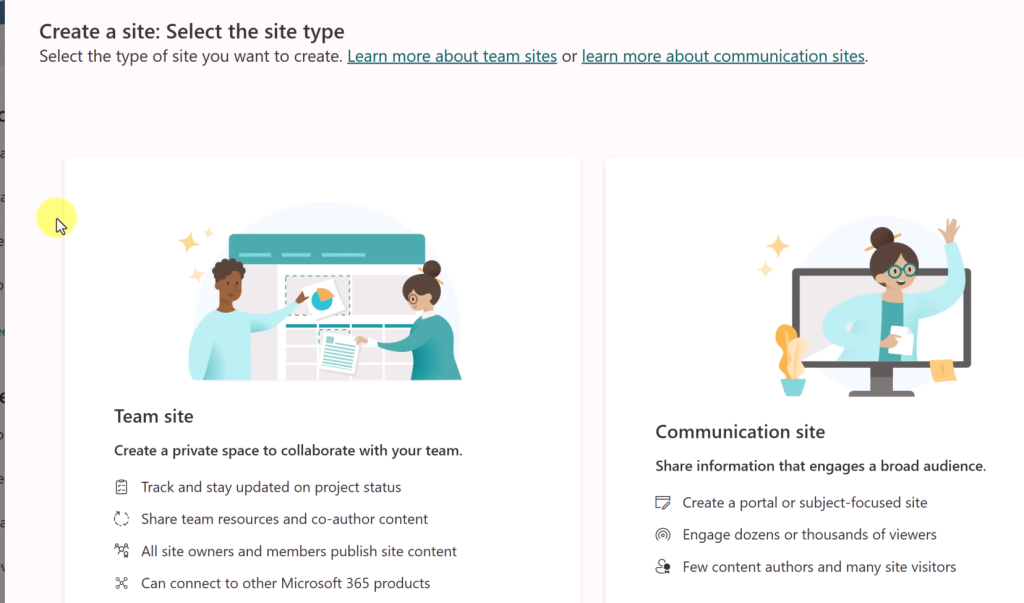
- Select Team site (recommended for internal team collaboration, document management, and project tracking)
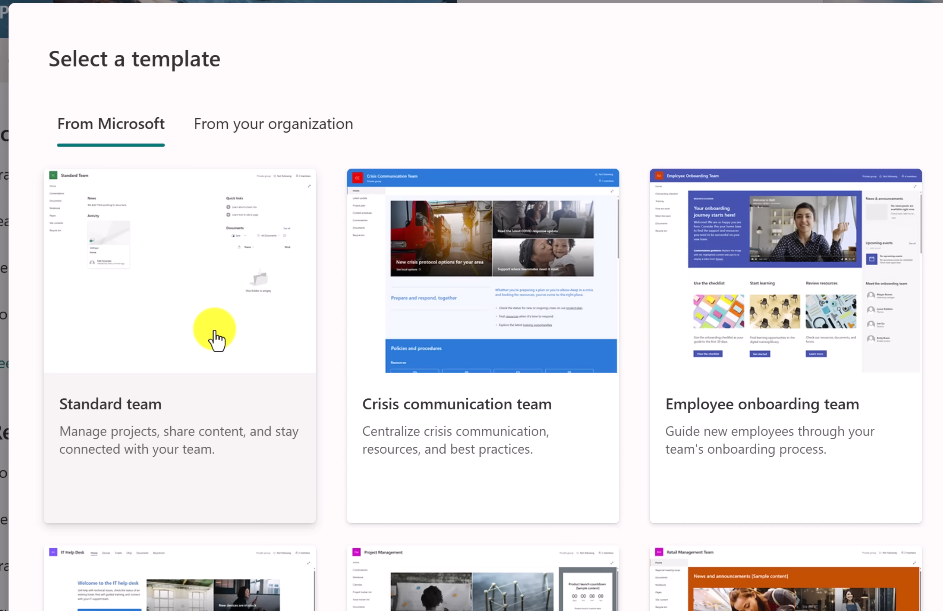
- Choose a template or build from scratch. I would suggest going with a clean template or starting with blank to avoid unnecessary confusion for other employees.
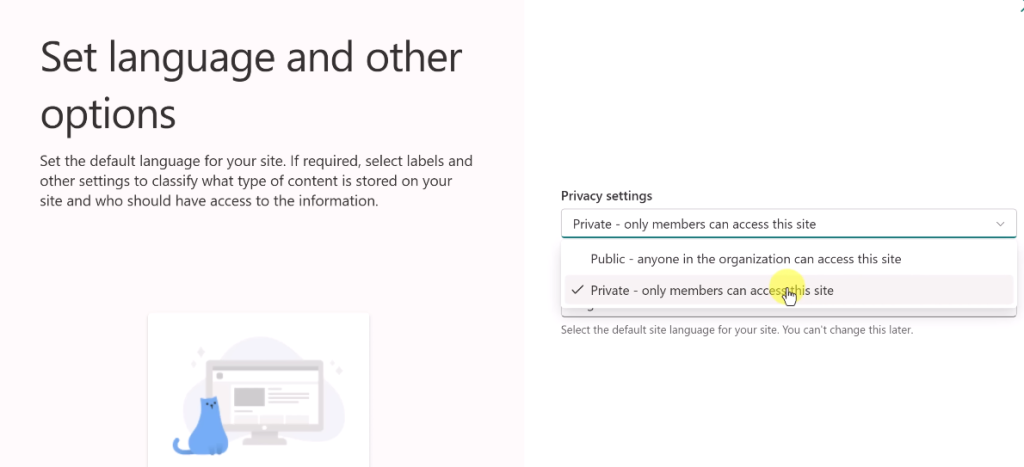
- Name your site and provide necessary detailed asked after selecting the template (e.g., Operations Hub or Finance & HR) and set the privacy level:
-
- Private: Only specified members can access site content.
- Public: Anyone within your organization can view the site.
2. Adding Team Members and Setting Roles & Permissions
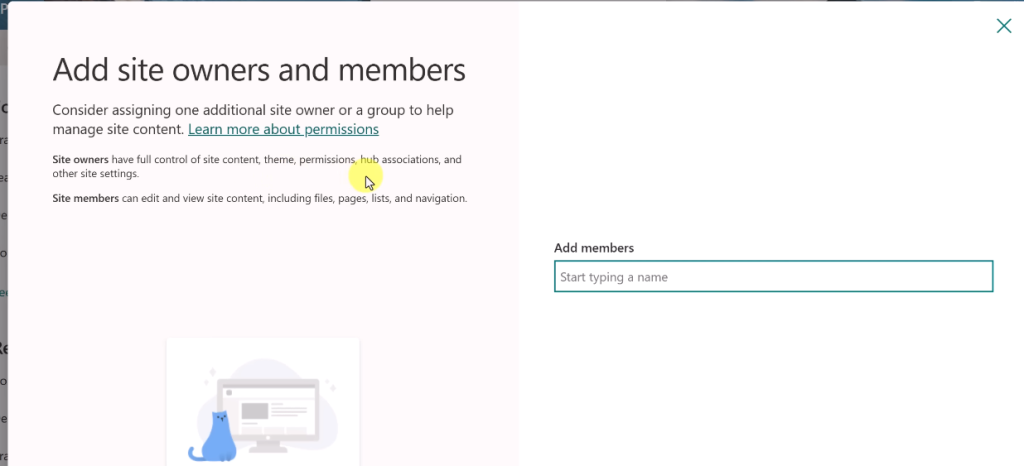
- On your new site dashboard, click Members in the top-right corner.
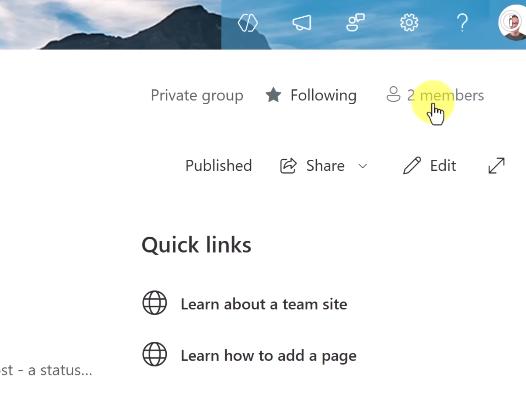
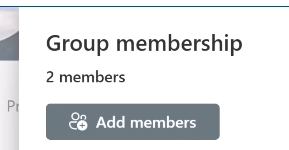
- Select Add members.
- Enter the names or custom domain email addresses of your team members.
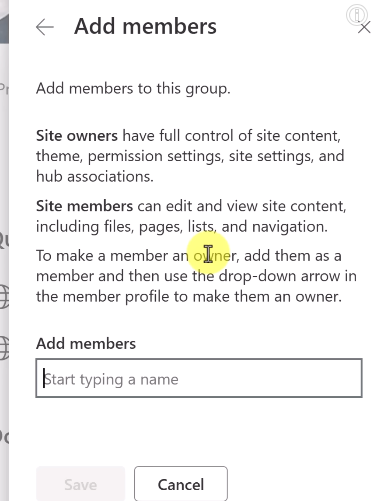
- Assign appropriate user permissions:
- Owners: Full administrative power over site layout, lists, and permissions.
- Members: Can view, edit, create, and upload files freely.
Note: This basic setup gives your organization a centralized, collaborative cloud portal. We will cover advanced site customization, permission security rules, and metadata structures in a future article!
Need Hands-On Training for Your Staff?
Getting Microsoft 365 set up is only half the journey—ensuring your staff actually adopts and uses these tools effectively is where real business productivity happens. If you want your employees to master SharePoint, Microsoft Teams, and cloud collaboration best practices with zero operational downtime:Book an Employee Training Consultation with Ultimate Coder: Email info@ultimatecoder.inRead about How to setup Professional Email account on Microsoft 365 Business

